Open source · runs locally

Manage your boards
Right from the browser

An App and MCP Server for managing Raspberry Pi Pico and ESP32 boards with MicroPython or CircuitPython over USB.

Quick Start View Source
Features

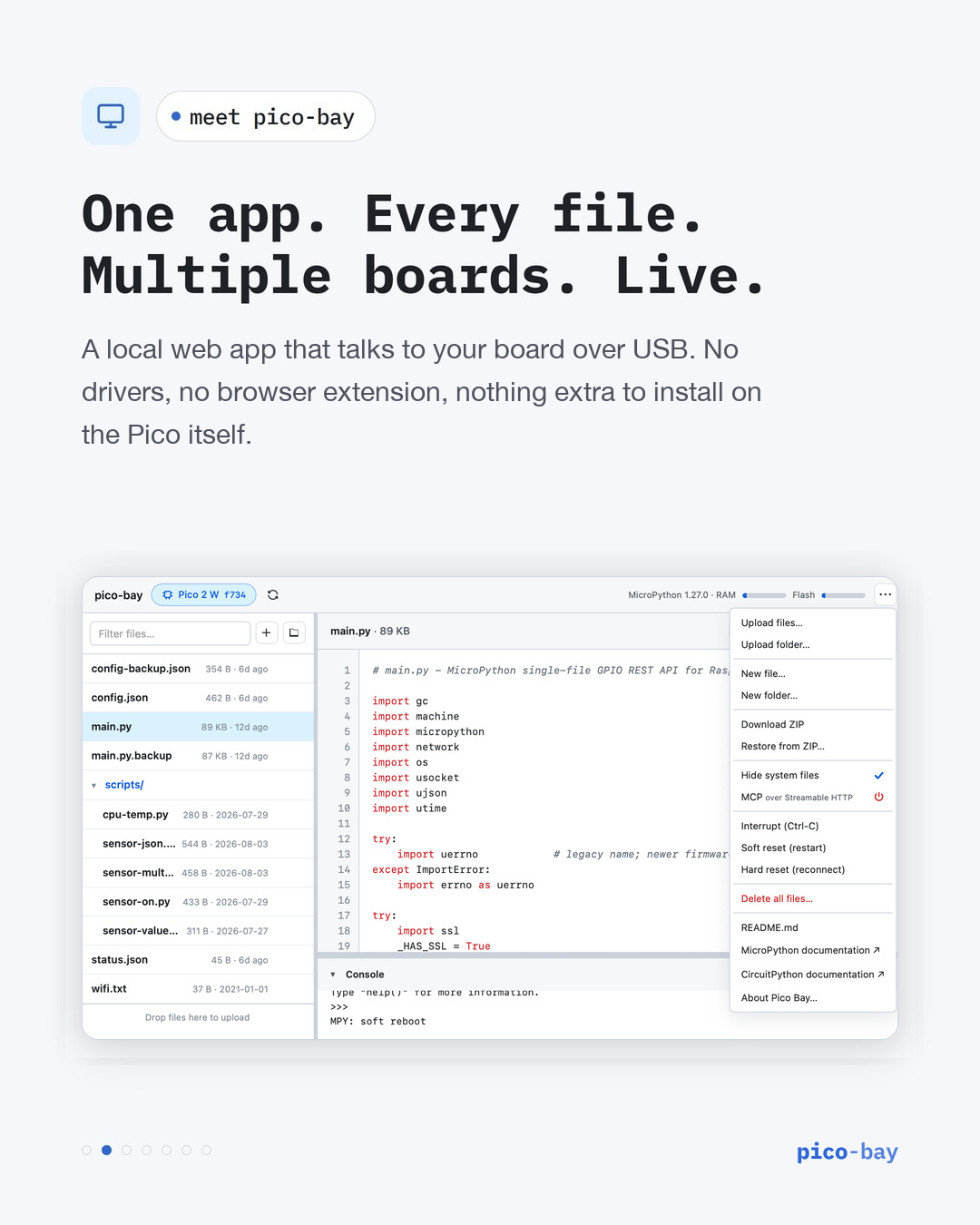
One app. Every file.
Multiple boards. Live.

Pico Bay brings the filesystem, the console, and AI integration into one dependency-free tool for Windows, macOS, Linux, and Raspberry Pi OS.

Devices & Files

Supports Pico, Pico W, Pico 2, Pico 2 W, ESP32, ESP32-C3, and ESP32-S3. Browse, create, upload, and download files across connected boards.

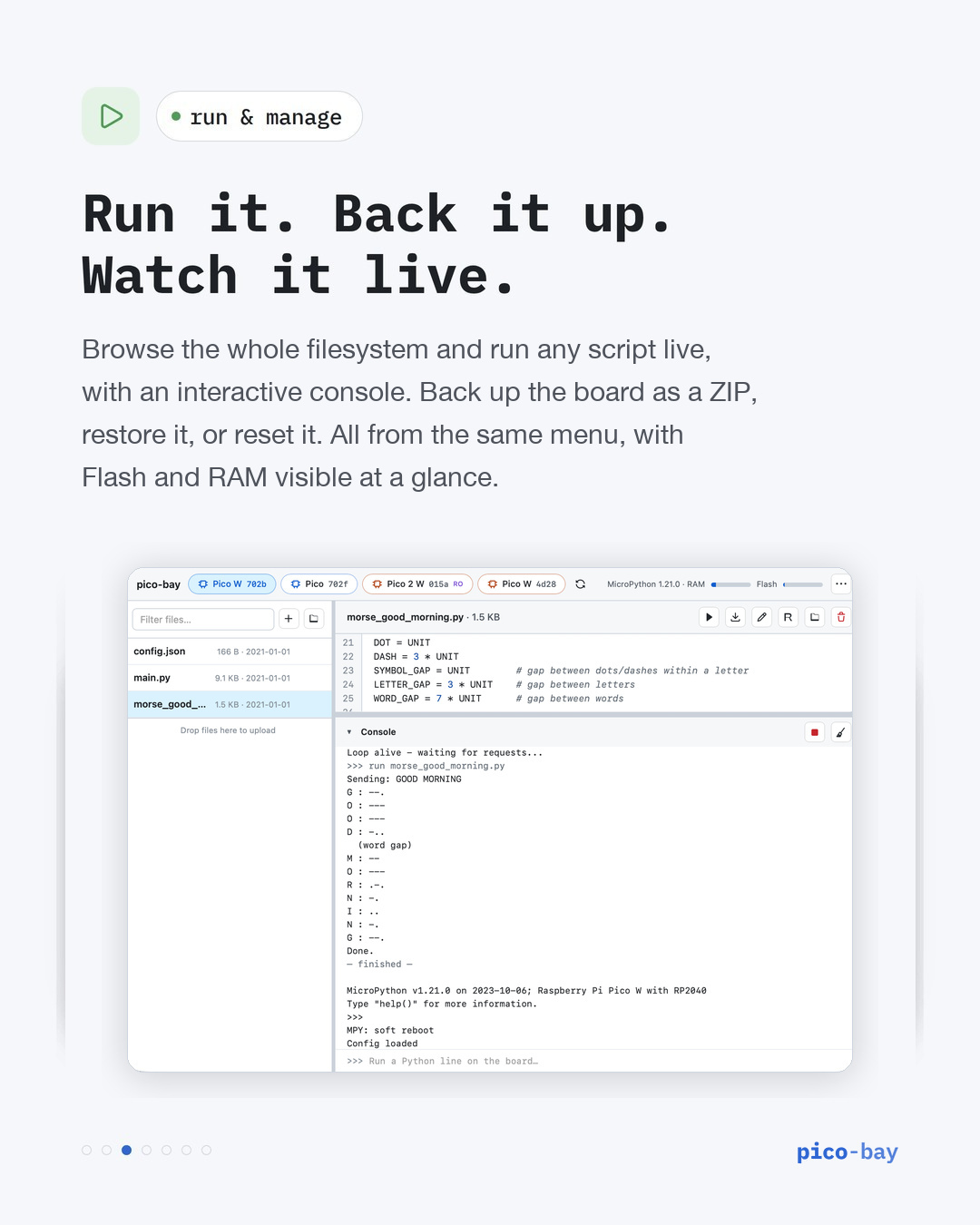
Run & Console

Run any Python file as __main__, stream program output to a live console, and interrupt programs safely with Ctrl-C.

MCP Server

Enable HTTP MCP in the app or launch an MCP client over stdio. AI agents can list boards, manage files, run Python, and install supported firmware.

Firmware

From bootloader to MicroPython

Install official firmware directly from the app, with download, validation, installation, and reboot progress.

Raspberry Pi Pico: choose Reboot to BOOTSEL, or hold BOOTSEL while reconnecting USB. Select the red board pill and the matching Pico model.

ESP32: choose Enter download mode, scan, and select the red DOWNLOAD pill. Pico Bay identifies supported chips, checks flash security, and downloads and verifies the latest generic MicroPython build.

ESP32 installation selects Erase and initialize storage by default. Uncheck it to preserve existing files. Unsupported or protected chips cannot be installed.

Quick start

Plug in. Open Pico Bay.

Install Node.js 20 or newer on Windows, macOS, Linux, or Raspberry Pi OS, then run:

npx @ctrlpi/pico-bay

Connect a MicroPython or CircuitPython board with a USB data cable. Open http://localhost:7426 if the browser does not open automatically. On a Raspberry Pi host, open http://PI_ADDRESS:7426 from another device on your LAN.

On Windows, startup builds the serial helper using the .NET Framework v4 C# compiler (csc.exe). ESP32 boards may also require their USB serial driver. See the setup FAQ.

For MCP setup and the full command reference, see the package documentation. Subscribe for updates below.

AI & MCP

"Claude, set a script to read the i2c temperature and turn on pin 7 if below 20 Celsius till it gets to 24 Celsius or past 10 pm"

Connect Claude directly to your physical USB boards.

Add to Claude Desktop

Point an MCP entry at npx @ctrlpi/pico-bay

{
  "mcpServers": {
    "pico-bay": {
      "command": "npx",
      "args": ["-y", "@ctrlpi/pico-bay", "--mcp-stdio"]
    }
  }
}

Then just ask

Manage your boards, files, and firmware right from the chat:

  • "List all boards connected right now."
  • "Read the main.py from the Pico."
  • "Install MicroPython on the board."
  • "Write a blink script to the ESP32."

Stay Updated

Subscribe to our mailing list for updates on new features and device support.